
To learn how to backup your phone photos, you should enable automatic synchronization through services like iCloud or Google Photos. For enhanced security, implement a 3-2-1 strategy by keeping three copies of your data on two different media types, such as a physical hard drive and encrypted cloud storage. This approach protects your memories from hardware failure and makes it simple to restore your data when switching to a new device.
Imagine losing every photo of the kids' soccer games or the family reunion at Palisade State Park because your phone slipped out of your pocket. For many Sanpete County residents, a smartphone serves as the primary vault for years of irreplaceable memories. It is not just about the expensive hardware; it is about protecting the digital legacy of your family against hardware failure, theft, or simple accidents. Establishing a reliable backup routine ensures that a cracked screen or a lost device never translates into a permanent loss of your personal history. In this guide, we will break down the practical steps to back up your iPhone or Android device using tools like iCloud and Google. You will learn how to prepare your data for a new device and discover the most durable methods for long term storage to keep your photos safe for years to come.
Why Backing Up Your Photos is Essential for Sanpete Families
Losing a phone is frustrating, but losing the years of memories stored on it is heartbreaking. If your device fails or disappears today, every photo from the Manti Pageant, every video of a North Sanpete High football game, and every snapshot from family gatherings up the canyon could be gone forever. At All Things Phones, we often see neighbors come in with damaged devices hoping for a miracle; however, without a proactive plan for how to backup your phone photos, recovery is never guaranteed.
To protect your digital history, we recommend following the 3-2-1 backup rule. This industry standard is a simple way to ensure your files survive even the worst hardware failure. The rule suggests keeping three copies of your data, using two different types of storage media, and ensuring one of those copies is stored off-site. For most local families, this looks like keeping the original on your phone, a second copy on a home computer or external drive, and a third copy in a secure cloud service. While technology can be unpredictable, this tiered approach ensures your memories remain safe regardless of what happens to your physical hardware. If you are unsure where to start, you can learn more about our shop in Sanpete County and how our device setup and support services take the stress out of data protection.
How to Back Up Your iPhone to the Cloud Using iCloud

For local iPhone users, the most integrated way to handle the off-site portion of the 3-2-1 rule is by using Apple’s built-in cloud service. Learning how to back up your iphone to the cloud is a straightforward process, but it requires understanding a few specific settings to ensure your data stays protected.
Follow these steps to enable photo syncing: 1. Open the Settings app on your iPhone. 2. Tap your Name at the very top of the screen to access your Apple ID settings. 3. Select iCloud. 4. Tap Photos. 5. Switch the toggle for Sync this iPhone to the On position (it will turn green).
Once enabled, your device will automatically upload your library whenever you are connected to Wi-Fi. However, a common frustration for many of our customers in Sanpete County is the 5GB storage limit. Apple provides 5GB of free space for every account, which usually fills up within a few months of taking high-resolution family photos or videos. If you see a "Storage Full" alert, you may need to upgrade to a paid iCloud+ plan or visit us for device setup and support services to help you manage your storage more efficiently.
It is vital to understand the difference between syncing and backing up, as many users mistake one for the other. When you turn on iCloud Photos, your phone is syncing. This means your library is mirrored across all your devices; if you delete a photo from your iPhone to save space, it will also be deleted from the cloud. A true backup is a separate snapshot of your entire device. To ensure your settings are correct and your memories are not accidentally deleted, you can contact All Things Phones for a quick check-up of your device settings. We can help you navigate these menus so you can feel confident that your photos are genuinely secure.
Backing Up an Android Phone or Samsung to the Cloud
For those using a Samsung Galaxy or a Google Pixel, the primary solution for protecting your images is the Google Photos app. While Samsung offers its own cloud for device settings, Google Photos is the industry standard for managing media on Android devices. It is usually pre-installed, but it requires a quick configuration to ensure it is actually working.
To enable the service, follow these steps: 1. Open the Google Photos app. 2. Tap your Profile Icon or initial in the top right corner. 3. Select Photos settings and then tap Backup. 4. Ensure the Backup toggle is switched to the On position.
Once this is active, your device will begin uploading your library to your Google account. A significant advantage of this system is the search capability. Google uses advanced recognition to let you search your library for specific terms like "sunset" or "Manti," making it easy to find specific memories without scrolling through years of files. This feature is so effective that many iPhone users also install Google Photos as a secondary way to learn how to backup your phone photos while gaining better search tools.
Local users should monitor their storage limit closely. Google provides 15GB of free storage, but this space is shared across Google Photos, Gmail, and Google Drive. If your email contains large attachments or you store many documents in Drive, your photo backup may stop unexpectedly when the limit is reached. If you find your storage is full or the settings feel overwhelming, our team at All Things Phones provides device setup and support services to help you clear space or adjust your quality settings. If your backup seems stuck, you can contact All Things Phones for expert assistance in resolving sync errors.
Steps to Backup Your iPhone Before Getting a New Phone
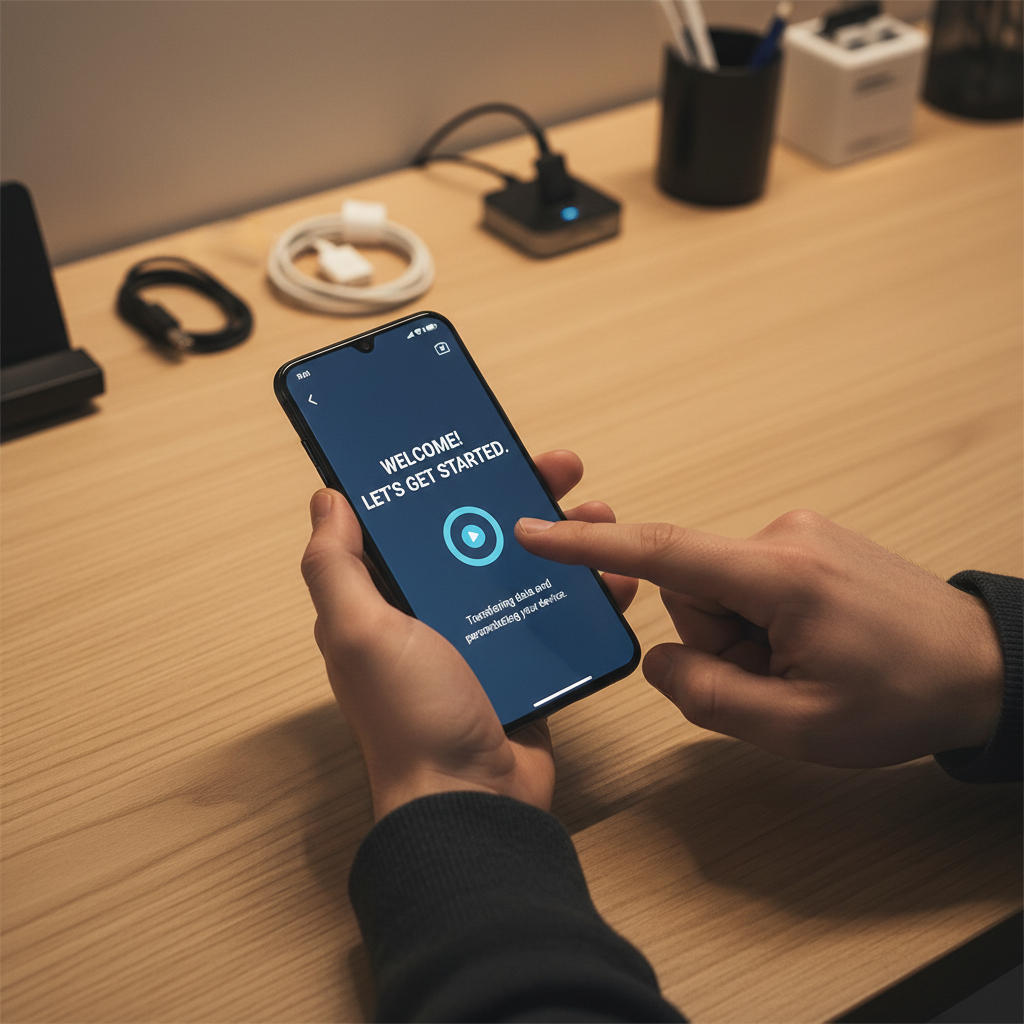
While background syncing keeps your library updated day to day, performing a manual snapshot is the most critical step in learning how to backup iphone before getting new phone. This ensures that every text message, app preference, and recent photo is captured right before you hand over your old device for a trade-in. At All Things Phones, we recommend performing this step at home on your own Wi-Fi to save time during your upgrade appointment.
To trigger this process, navigate to Settings, tap your Name, select iCloud, and then choose iCloud Backup. From there, tap Back Up Now. A common mistake is assuming the phone is backed up because it was plugged in the night before; however, if you have taken new photos or received important messages throughout the morning, a manual backup ensures nothing is left behind.
A significant resource often overlooked is Apple’s Temporary iCloud Storage feature. If your standard 5GB of free space is full, Apple allows you to use unlimited cloud space for up to 21 days specifically to facilitate a transfer to a new device. This feature removes the need to buy a larger storage plan just for a one time upgrade. Before you head to our shop, please ensure you know your Apple ID password. We cannot complete the transfer or deactivate the Find My service without it, and resetting a forgotten password can add significant time to your visit. If you find these settings confusing or your backup is taking too long, our device setup and support services are designed to handle the heavy lifting for you. For specific questions about your hardware, you can always contact All Things Phones before you arrive.
Choosing the Best Way to Store Photos Forever

While cloud services like iCloud and Google Photos are excellent for daily convenience, many people ask: what is the best way to store photos forever? The reality is that no single digital storage method is permanent without regular maintenance. Hardware can fail, accounts can be locked, and file formats can become obsolete. To truly protect your legacy, we recommend a hybrid approach that combines the accessibility of the cloud with the tangible security of physical hardware.
Method | Pros | Cons |
|---|---|---|
Cloud Storage | Automatic, accessible anywhere, easy to share. | Monthly subscription fees, requires internet. |
Physical Drive | One-time cost, works offline, you own the data. | Can be lost or broken, requires manual updates. |
A physical backup, such as an external hard drive or a dedicated folder on your Mac or PC, serves as a safety net if your cloud account is compromised or if you decide to stop paying for monthly storage. However, physical drives have a limited lifespan. We suggest refreshing your hardware every five to seven years and checking the drive annually to ensure the data is still readable. This level of redundancy is the gold standard for how to backup your phone photos.
If the idea of plugging in cables and navigating file folders feels overwhelming, our team at All Things Phones is here to help. We provide device setup and support services to assist you in moving your library from a handheld device to a high-capacity drive. You can learn about our shop in Sanpete County to see how we help local families preserve their digital history. If you have questions about which external drive is right for your collection, feel free to contact All Things Phones for expert advice tailored to your specific needs.
Common Backup Questions and Troubleshooting
Even with a solid strategy in place, technology issues can feel intimidating. Navigating the nuances of digital storage often leads to a few recurring questions. One of the biggest hurdles for many residents is simply understanding what the cloud actually is. Rather than some mysterious ether, the cloud is simply a high security computer, or server, located in a professional data center. When you upload a photo, you are sending a copy to that secure remote machine designed to keep it safe.
To help clarify the process, here are the most common questions we hear at the shop:
What happens if I don't backup? If your phone is lost, stolen, or experiences a hardware failure, your data is likely gone forever. Modern smartphones use encrypted storage chips; if the motherboard fails, the photos cannot usually be recovered by local repair shops without a prior backup.
Where do the photos go? Your files are stored on encrypted servers managed by companies like Apple or Google. These facilities use two factor authentication and multiple redundancies to ensure your data stays safe even if one of their individual computers fails.
What is the cheapest way to back up photos? Utilizing the free tiers of iCloud (5GB) or Google Photos (15GB) is the lowest cost entry point. For larger libraries, a one-time purchase of a physical external drive is often more cost-effective than paying monthly subscription fees over several years.
If your backup seems to be stuck, check your Wi-Fi connection and ensure your phone is plugged into power. Many devices pause uploads to save battery or data. If you are still seeing errors or running out of space, our device setup and support services can diagnose the specific issue. You can always contact All Things Phones for personalized help with your account settings or to learn more about our shop in Sanpete County and how we support local tech users.