Learning how to set up a new phone involves backing up your old device and following the on-screen setup wizard to connect to Wi-Fi and migrate your data. You can transfer your apps and settings directly from a cloud backup or by connecting your old phone; simply sign into your primary account to finish the configuration. This process ensures all your contacts, photos, and personal preferences are available on your new device immediately.
Unboxing a new smartphone should feel like a celebration, yet for many residents in Sanpete County, it often triggers a wave of technical anxiety. The fear of losing decades of family photos, losing access to mobile banking, or getting stuck in a loop of forgotten passwords can turn an exciting upgrade into a stressful chore. A proper setup ensures your digital life migrates seamlessly without gaps in security or communication. At All Things Phones, we believe technology should work for you, not against you. This guide provides a practical roadmap to get your device running perfectly. You will learn how to handle your SIM card, transfer data between different operating systems, and navigate the complexities of two factor authentication. Whether you are switching from iPhone to Android or helping a senior family member, these steps will ensure your new phone is ready for immediate use.
The Pre Setup Checklist: What to Do Before You Start
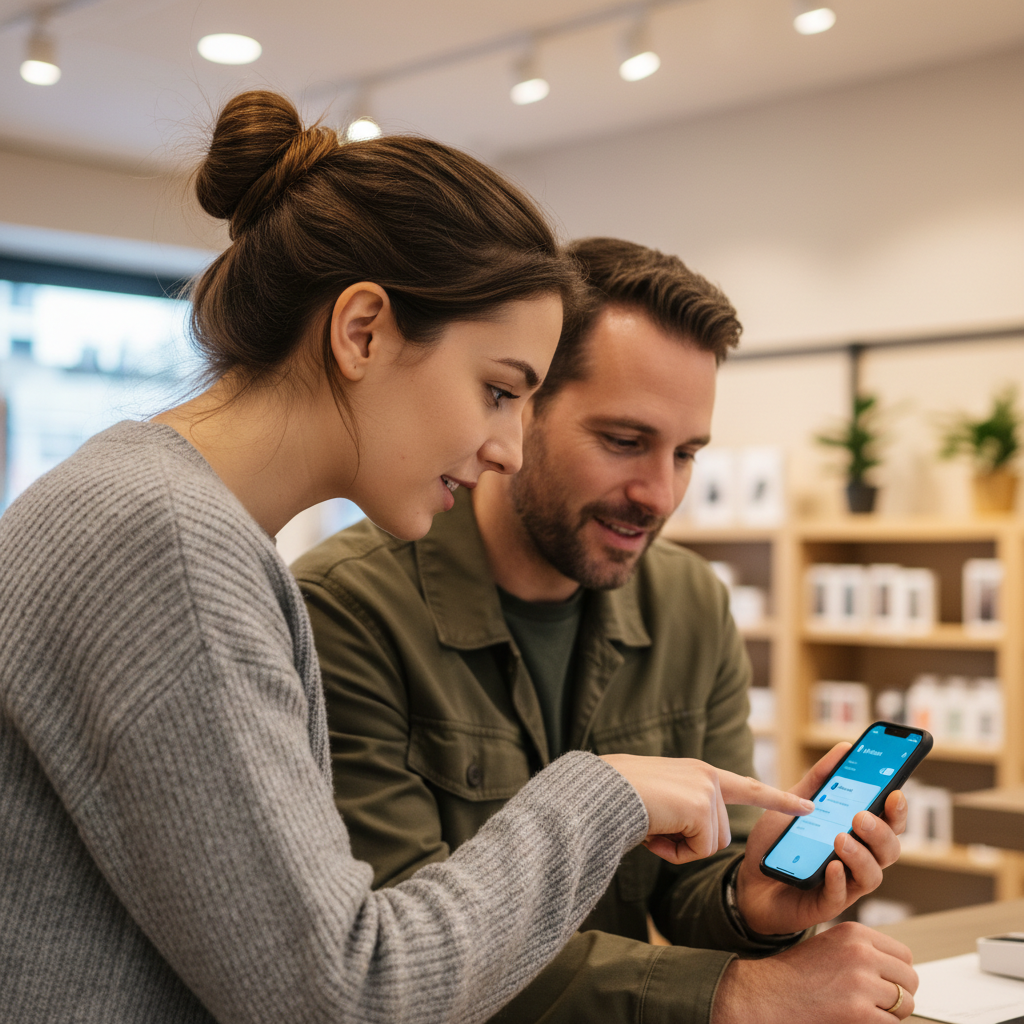
Getting a fresh device is exciting, but jumping in without preparation often leads to frustration. If you want to know what to do before you set up a new phone, follow these specific steps to ensure your data migrates smoothly.
Charge both devices to at least 80 percent. Data transfers are power-intensive. A phone that dies mid-transfer can lead to corrupted files or a stalled setup.
Have your Wi-Fi password ready. You will need a stable connection for the entire process. Keep in mind that rural Sanpete County internet speeds can vary, which directly affects how long your high-resolution photos and apps take to download.
Update your old phone. Go into your settings and install any pending software updates. Outdated operating systems often struggle to communicate with brand-new hardware.
Run a manual backup. Ensure your photos and contacts are synced to iCloud or Google Photos one last time.
The most critical step, and the one that acts as the primary roadblock for our local customers, is confirming your account credentials. You must know your Apple ID or Google password before you begin. If you are unsure of these details, reset them on your old device now. If you need help navigating these account recoveries, you can contact us for tech assistance before you start. For those who prefer a professional touch, we provide comprehensive device setup and support services to handle the technical heavy lifting for you.
Should You Put Your SIM Card in the New Phone First?
One of the most frequent questions we hear is whether to swap your SIM card before pressing the power button. For most modern iPhones and Samsung devices, you should wait until the setup wizard specifically asks for it or, better yet, finish your data transfer via Wi-Fi first. Swapping the card too early can sometimes complicate the activation process during the initial stages of learning how to set up a new phone.
Understanding the hardware is key. A physical SIM is the small plastic chip you have used for years; an eSIM is a digital version built directly into the phone hardware. While newer models are moving toward eSIM, many local users still rely on physical cards. If you are upgrading from an older device, your existing card might be the wrong physical size. We often see older Micro SIMs that will not fit the Nano slots in newer phones. If your card does not fit or you are unsure how to activate an eSIM, you can contact us for tech assistance or stop by the shop for professional device setup and support services.
How to Set Up a New iPhone Using Quick Start
Apple’s Quick Start is the most efficient way to learn how to set up a new phone if you are moving from one iPhone to another. This method creates a near-perfect clone of your existing device, including your background, app layout, and settings. Nothing is deleted from your old phone during this process; it simply copies the information over.
To begin, place the two devices side-by-side. Turn on the new iPhone and bring it close to the old one. A prompt will appear on your old screen asking if you want to use your Apple ID to set up the new device. Once you confirm, an animation of swirling blue dots will appear on the new phone. Your old phone will open a circular camera window, which resembles a stylized cloud icon. Hold the old phone over the new one so the camera can scan those dots.
Follow these specific steps for a successful transfer: - Keep both phones physically touching or within a few inches of each other throughout the entire migration. - Enter your old phone’s passcode on the new screen when prompted. - Select "Transfer from iPhone" to start the data migration.
Local residents should be aware that while this process clones your data, it requires a significant amount of bandwidth to download your apps and sync high-resolution photos from iCloud. If your Sanpete County home Wi-Fi is prone to dropping out or has slow speeds, a large photo library can cause the process to stall. If you are worried about a weak connection, you can contact us for tech assistance or visit the shop for our professional device setup and support services, where we use stable, high-speed infrastructure to ensure your transfer completes without interruption.
How to Transfer Data to a New Android Phone or Samsung Galaxy
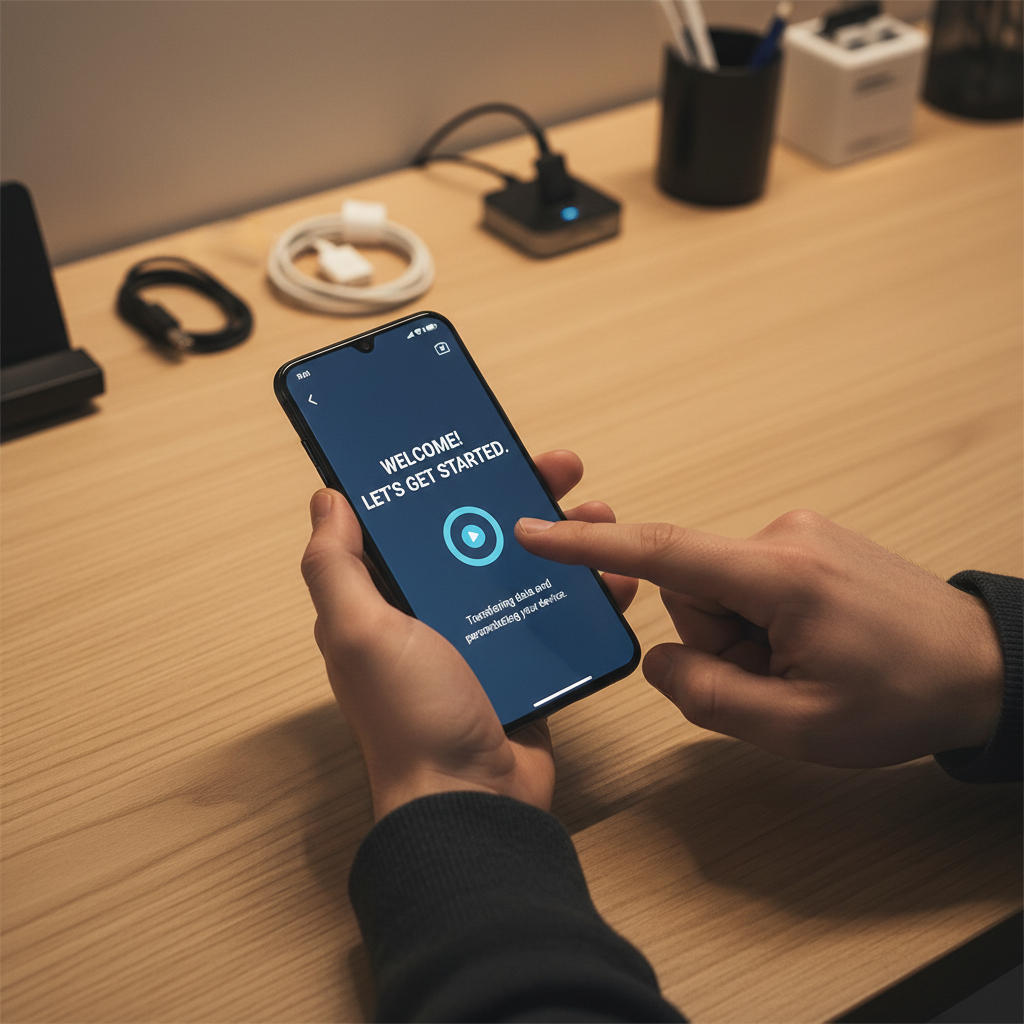
Moving to a Samsung Galaxy or another Android device involves a slightly different toolkit than the iPhone process. For most Android users, you will use the standard Google setup wizard; however, Samsung users should utilize the dedicated Smart Switch app for the most comprehensive results. Both methods allow you to choose between a wireless transfer or a physical cable connection.
When learning how to set up a new phone, we generally recommend the cable method for its speed and reliability. Most new devices come with a USB-C to USB-C cable in the box for this specific purpose. Plugging the old phone directly into the new one eliminates the risk of a Wi-Fi drop-out mid-transfer. Once connected, you will see a list of data categories to migrate. It is important to manually verify that Messages, Call Logs, and Contacts are selected. Many people assume these move automatically via the cloud, but a direct transfer ensures your local text history and recent calls remain intact.
If you are moving from a device with an older micro-USB port, you might need a specialized adapter to use the cable method. Wireless is an option if you have a strong connection, but it can take significantly longer for large video libraries. If the transfer screen gets stuck or you aren't seeing all your apps appear on the new home screen, you can contact us for tech assistance. For a guaranteed, error-free migration of all your data, our team provides professional device setup and support services right here in the shop.
Switching Sides: Moving Data from iPhone to Android or Vice Versa
Moving between Apple and Android is more involved because the two systems do not share a common language. When you learn how to set up a new phone on a different platform, you are essentially asking two different machines to translate your life.
If you are moving from Android to iPhone, download the Move to iOS app from the Google Play Store onto your old device. During the initial iPhone setup, select Move Data from Android to transfer your contacts, message history, and camera roll. For those switching from iPhone to Android, the Switch to Android app or a physical lightning-to-USB-C cable is the most reliable method. A cable ensures that large video files transfer without timing out due to local internet fluctuations.
Some items will not migrate. You will likely need to repurchase paid apps because a license bought in the Apple App Store does not apply to the Google Play Store. Furthermore, you must turn off iMessage in your old iPhone settings before you switch; failing to do so can result in missing texts from other iPhone users. If these cross-platform technicalities feel overwhelming, you can contact us for tech assistance. We regularly manage these transitions for our customers through our device setup and support services to ensure no memories or contacts are left behind.
The Security Trap: Handling Two Factor Authentication and Banking Apps
One of the most common mistakes people make when learning how to set up a new phone is factory resetting their old device the moment the progress bar hits 100 percent. Do not wipe your old phone yet. Modern security measures, especially Two-Factor Authentication (2FA), often tie your identity to a specific piece of hardware. If you delete your old phone data before verifying the new one, you could be locked out of your bank accounts or work email for days.
Take the time to physically open every critical app on your new device. Log into your banking apps, Facebook, and payroll portals. Most financial institutions will send a verification code to your old phone to approve the new hardware. If you have already wiped the old device, you may need to call a corporate help desk or visit a bank branch in person to regain access.
Authenticator apps like Google Authenticator or Microsoft Authenticator require a manual hand-off. These accounts do not usually sync through a standard cloud backup for security reasons. On your old phone, look for an Export or Transfer accounts option. This will generate a QR code that you must scan with the camera on your new phone. If this process feels technical or if you have already lost access to an account, you can contact us for tech assistance. We frequently resolve these digital lockouts through our device setup and support services to ensure your transition is secure and uninterrupted.
New Phone Setup Tips for Seniors and First Time Users

Learning how to set up a new phone should feel empowering, not frustrating. For seniors or those new to smartphones, a few simple adjustments make the daily experience much more comfortable.
Start by making the screen easier to read. Go to Settings, then Display (or Display & Brightness), and look for Text Size or Font Size. You can slide the bar to the right to enlarge the font across your entire phone. This one change prevents eye strain and makes navigating menus significantly simpler.
Safety is another priority. We recommend setting up your Medical ID on iPhones or Emergency Contacts on Android devices immediately. This allows first responders to see critical health information or contact your family from your lock screen without needing your passcode. It is a vital feature that provides peace of mind for you and your loved ones throughout Sanpete County.
Understanding the layout is the final step. Think of your Home screen like a physical desk where you keep the tools you use every day, such as your phone app and camera. The App Library or App Drawer is like a storage closet that holds every single app you have downloaded. If an icon disappears from your main screen, you can always find it there. If these steps feel complicated, you can contact us for tech assistance or visit our shop for personalized device setup and support services to get everything adjusted to your liking.